Customers
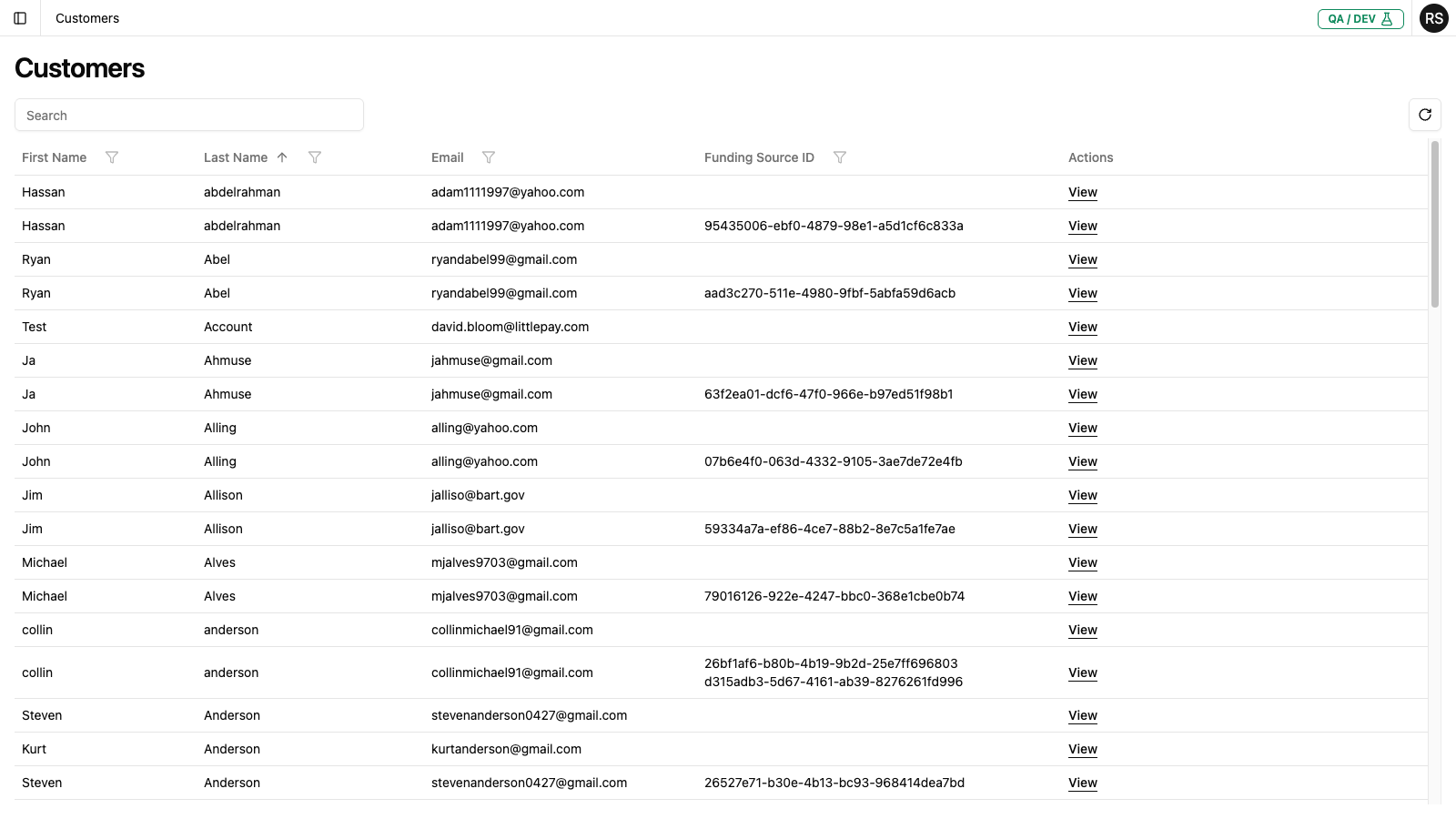
The Customers page allows you to search for and view customer information, including their transaction history and refunds.
Accessing Customers
Click Customers in the left navigation menu to open the Customers page.
Customer List
Search
At the top of the page, you'll find a search box. You can search for customers by:
- First name or Last name
- Email address
- Funding Source ID (the unique identifier for their payment method)
Type your search term and the results will filter automatically.
Resetting Filters
Click the Reset filters button to clear all search and filter criteria.
Customer Table Columns
| Column | Description |
|---|---|
| First Name | Customer's first name (can be filtered) |
| Last Name | Customer's last name (can be sorted and filtered) |
| Customer's email address (can be filtered) | |
| Funding Source ID | The unique identifier(s) for the customer's payment method(s) |
| Actions | Contains the View link to see customer details |
Sorting and Filtering
- Click column headers with sort icons to change the sort order
- Click the filter icon next to column headers to filter by specific values
Customer Detail Page
Click View next to a customer to open their detail page.
Breadcrumb Navigation
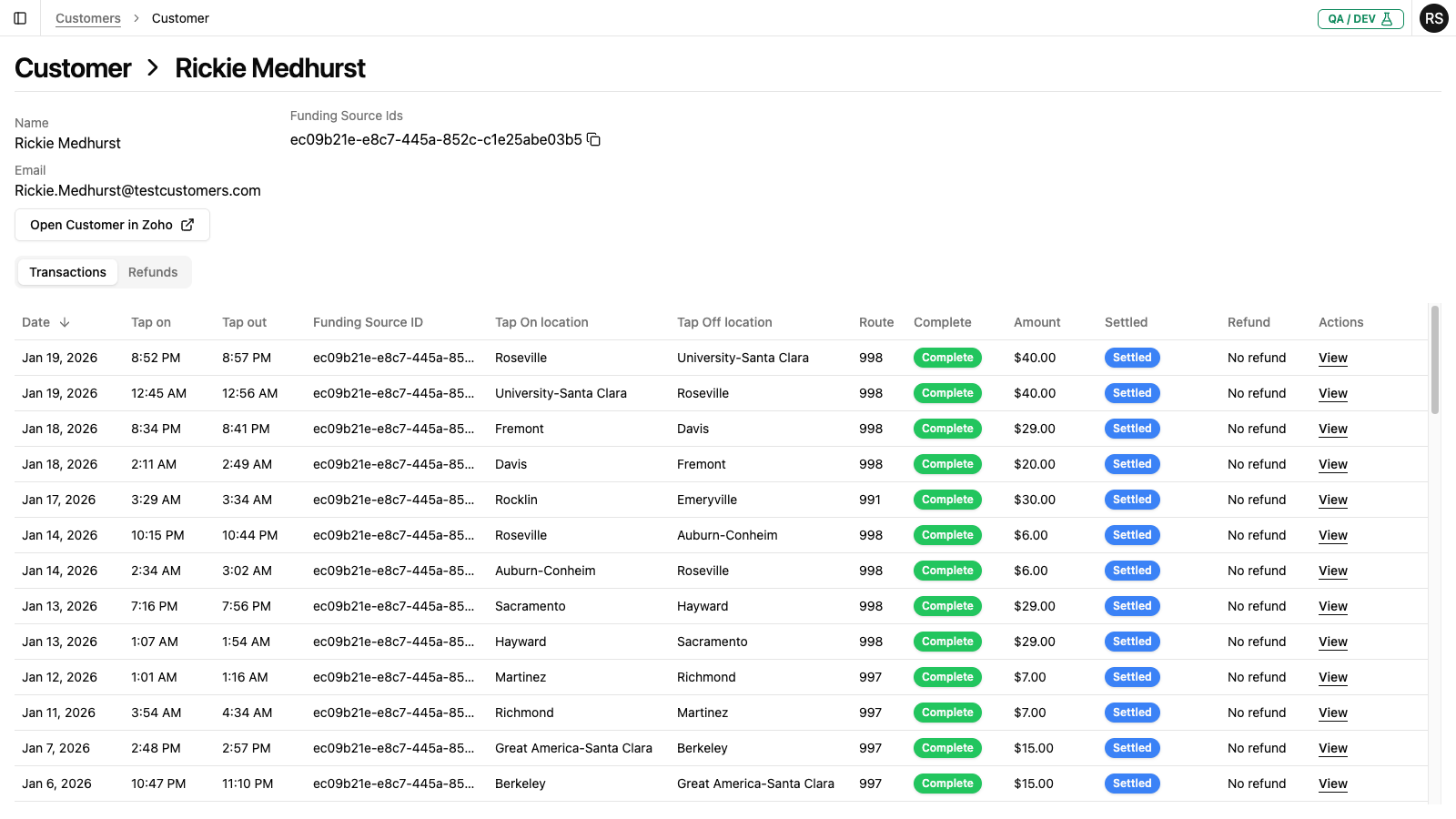
At the top of the page, you'll see breadcrumb navigation:
Customers > Customer
Click Customers to return to the customer list.
Customer Information
The top section displays basic customer information:
| Field | Description |
|---|---|
| Name | Customer's full name |
| Customer's email address | |
| Funding Source Ids | The payment method identifier(s) associated with this customer. Click the copy icon to copy the ID to your clipboard. |
Open Customer in Zoho
Click the Open Customer in Zoho button to view the customer's record in Zoho CRM. This opens in a new browser tab.
Tabs
The customer detail page has two tabs:
Transactions Tab
Displays all transactions associated with this customer's funding source(s):
- Shows the same columns as the main Transactions page
- Filtered to only show this customer's transactions
- If the customer has no transactions, you'll see: "This customer does not yet have any transactions"
Refunds Tab
Displays all refunds processed for this customer:
- Shows refund history with amounts and statuses
- Allows you to track the status of pending refunds
Processing a Refund
To process a refund for a customer:
- Navigate to the customer's detail page
- Select the Transactions tab
- Click View next to the transaction that requires a refund
- On the Transaction Detail page, click Issue Refund in the Charges and Refunds card
- Complete the refund form (type, reason, amount, notes)
- Confirm and submit the refund request
For detailed instructions, see Issuing Refunds.
The refund will then appear in the Refunds tab once processed.
Common Tasks
Finding a Customer by Funding Source ID
If you have a Funding Source ID from a transaction:
- Go to the Customers page
- Paste the Funding Source ID into the search box
- Click View on the matching customer
Viewing a Customer's Complete History
- Search for and select the customer
- Review the Transactions tab for all their journeys
- Check the Refunds tab for any previous refunds
Contacting a Customer
- View the customer's detail page
- Note their email address
- Click Open Customer in Zoho to access their full CRM record with contact details