Reports
The Reports page allows you to generate and download reports for accounting, reconciliation, and analysis purposes.
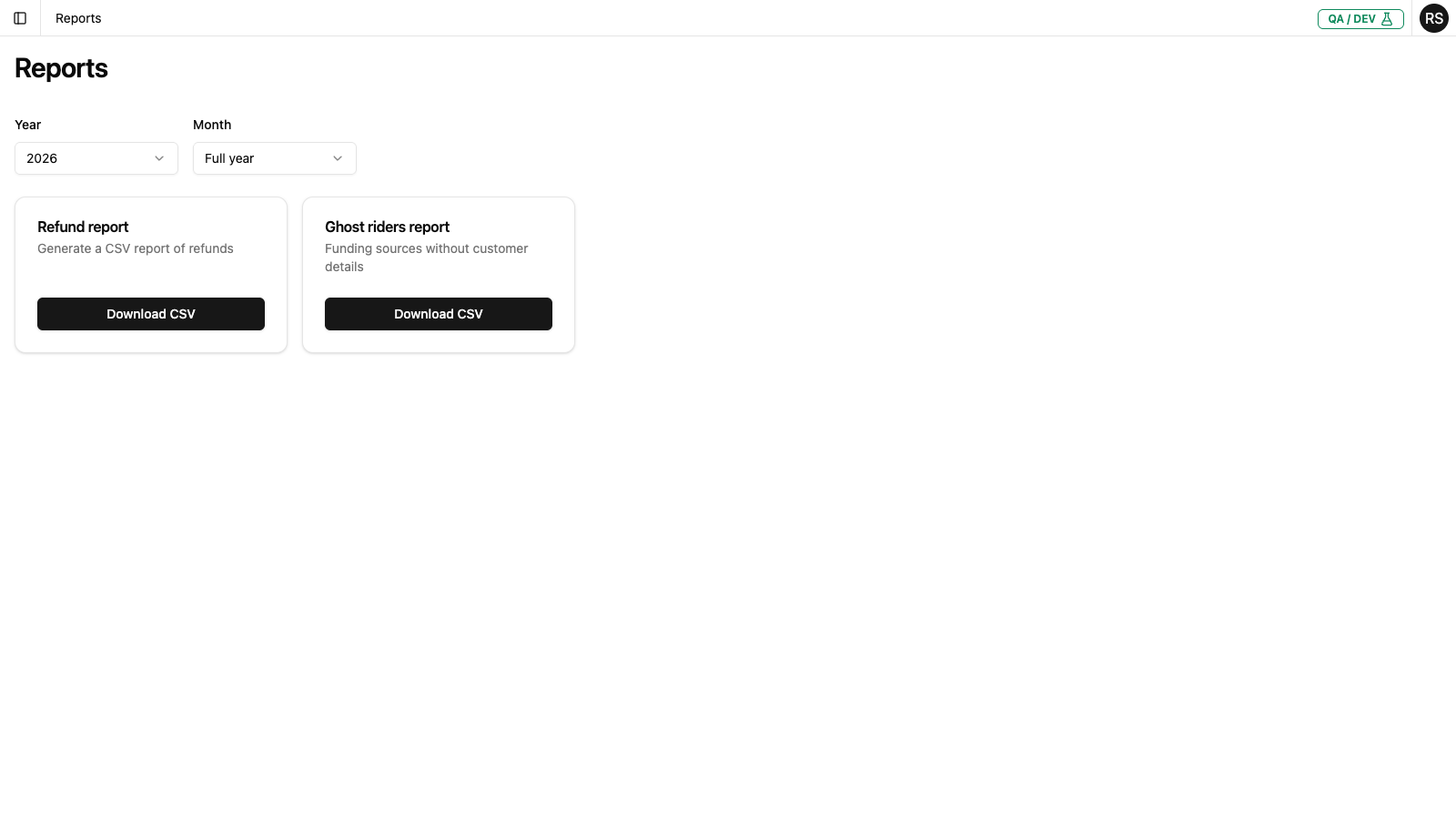
Accessing Reports
Click Reports in the left navigation menu to open the Reports page.
Available Reports
Refund Report
Generate a CSV report of all refunds processed within a specified time period.
Refund Report Columns
| Column | Description |
|---|---|
| date | Date the refund was processed |
| time | Time the refund was processed |
| refundId | Unique identifier for the refund |
| chargeId | Identifier of the original charge |
| fundingSourceId | Payment method identifier |
| status | Final status of the refund |
| refundAmount | The amount refunded |
| request.createdBy | Staff member who processed the refund |
| request.reason | Reason provided for the refund |
| customer.zohoId | Customer's Zoho CRM identifier |
| customer.firstName | Customer's first name |
| customer.lastName | Customer's last name |
| customer.email | Customer's email address |
| tapOn.date | Date of the tap-on event |
| tapOn.time | Time of the tap-on event |
| tapOn.stop | Stop/station where the tap-on occurred |
| tapOn.route | Route number at tap-on |
| tapOff.date | Date of the tap-off event |
| tapOff.time | Time of the tap-off event |
| tapOff.stop | Stop/station where the tap-off occurred |
| tapOff.route | Route number at tap-off |
Ghost Riders Report
Generate a CSV report of funding sources that have transaction activity but are not linked to a customer record in the system.
The ghost riders report helps identify:
- Funding sources with transactions but no associated customer details
- Passengers who may need to be contacted to complete their profile
- Data quality issues that need attention
This report is useful for customer outreach and ensuring complete customer records.
Ghost Riders Report Columns
| Column | Description |
|---|---|
| fundingSourceId | Payment method identifier |
| firstSeenDate | Date the funding source was first used |
| firstSeenTime | Time the funding source was first used |
| lastSeenDate | Date the funding source was most recently used |
| lastSeenTime | Time the funding source was most recently used |
| totalTapOns | Total number of tap-on events |
| totalTripsCompleted | Number of completed trips (with tap-off) |
| totalChargedAmount | Total amount charged to this funding source |
| totalSettledAmount | Total amount that has been settled |
| totalRefundedAmount | Total amount refunded to this funding source |
| routes | Routes this funding source has been used on |
Generating a Report
Step 1: Select the Year
Click the Year dropdown and select the desired year:
- The current year is selected by default
- Previous years are available for historical reporting
Step 2: Select the Month
Click the Month dropdown and select the time period:
| Option | Description |
|---|---|
| Full year | Generate a report for the entire selected year |
| January - December | Generate a report for a specific month |
Step 3: Download the Report
Click the Download CSV Report button to generate and download the report.
- The report will be downloaded as a CSV file
- The file can be opened in Excel, Google Sheets, or other spreadsheet applications
Working with Report Data
Opening the CSV File
- Locate the downloaded file (usually in your Downloads folder)
- Double-click to open in your default spreadsheet application
- Or right-click and choose "Open with" to select a specific application
Tips for Working with Reports
- Filter data - Use spreadsheet filters to analyze specific subsets of data
- Create pivot tables - Summarize refund data by date, status, or staff member
- Calculate totals - Sum refund amounts for accounting reconciliation
Common Tasks
Monthly Reconciliation
To generate a monthly refund report for accounting:
- Select the appropriate Year
- Select the specific Month
- Click Download CSV Report
- Open the CSV in your spreadsheet application
- Sum the refund amounts for the total monthly refund value
Year-End Reporting
To generate an annual refund summary:
- Select the appropriate Year
- Select Full year for the month
- Click Download CSV Report
- Analyze the data for annual trends and totals
Comparing Periods
To compare refund activity across periods:
- Generate reports for each period you want to compare
- Open both CSV files
- Compare totals, volumes, or create charts to visualize trends
Best Practices
- Regular exports - Download reports regularly for backup and offline analysis
- Archive reports - Save copies of reports for historical reference
- Verify totals - Cross-check report totals with the Refunds page for accuracy
Next Steps
- Review refund details for specific transactions
- Check the Overview for visual trends