Refunds
The Refunds page allows you to view and track all refund requests processed through the Fare Adjustment Tool.
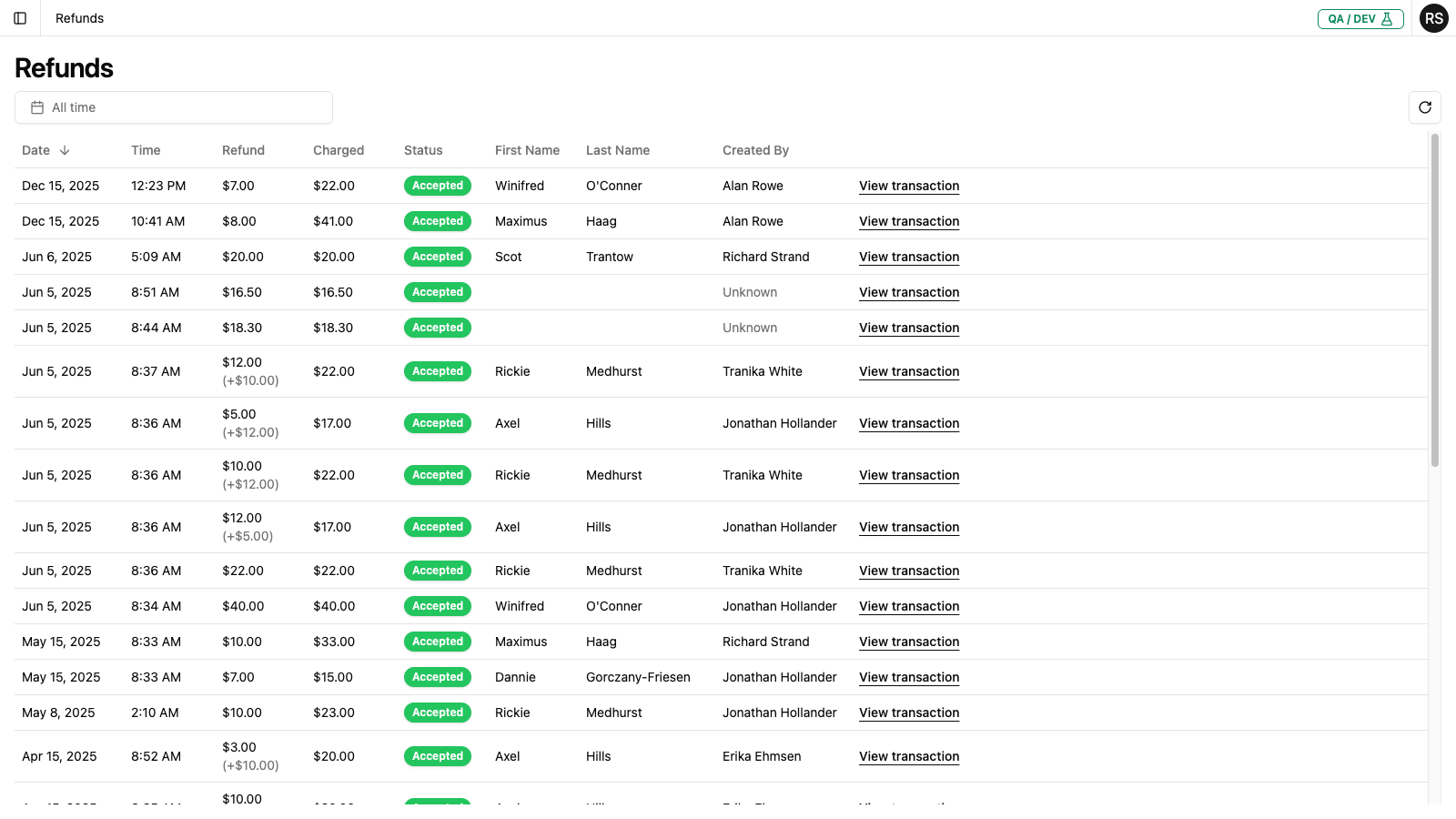
Accessing Refunds
Click Refunds in the left navigation menu to open the Refunds page.
Page Layout
Date Range Filter
At the top of the page, you'll find a date picker to filter refunds by time period:
- All time (default) - shows all refunds regardless of date
- Last 7 days and other preset ranges
- Custom date ranges can be selected
Refresh Button
Click the refresh icon on the right side to reload the refund data with the current filters.
Refunds Table
The main content area displays a table of refunds with the following columns:
| Column | Description |
|---|---|
| Date | The date the refund was initiated (click to sort) |
| Time | The time the refund was initiated |
| Refund | The refund amount. If multiple refunds exist for the same charge, additional amounts appear in parentheses (e.g., "$12.00 (+$10.00)") |
| Charged | The original amount that was charged |
| Status | The current status of the refund (e.g., "Accepted") |
| First Name | Customer's first name |
| Last Name | Customer's last name |
| Created By | The staff member who initiated the refund |
| View transaction | Link to view the original transaction details |
Understanding Refund Statuses
Refunds go through several stages as they are processed:
| Status | Description |
|---|---|
| Accepted | The refund has been accepted and processed successfully (shown with green badge) |
| Pending | The refund has been submitted and is awaiting processing |
| Created | The refund request has been created in the system |
| Rejected | The refund was rejected by the payment system |
| Error | An error occurred during processing |
Most refunds will show as Accepted once they have been successfully processed.
Initiating a Refund
Refunds are initiated from the Transaction Detail page, not from the Refunds page. To process a new refund:
- Navigate to Transactions or find a customer in Customers
- Click View on the transaction that needs a refund
- On the Transaction Detail page, click Issue Refund in the Charges and Refunds card
- Complete the refund form with type, reason, amount, and notes
- Review and confirm the refund request
For step-by-step instructions, see Issuing Refunds.
The refund will then appear on this Refunds page.
Working with Refunds
Sorting Refunds
Click on the Date column header to sort refunds:
- Click once for descending order (newest first)
- Click again for ascending order (oldest first)
Filtering by Date Range
To view refunds for a specific period:
- Click the date range picker
- Select the desired time period
- The table will update to show only refunds within that range
Tracking a Specific Refund
If a customer inquires about a refund:
- Search for the customer on the Customers page
- View their Refunds tab to see all refunds for that customer
- Or use the Refunds page to search by date when the refund was processed
Common Tasks
Reviewing Daily Refund Activity
- Set the date range to the current day
- Review all refunds processed that day
- Check for any failed refunds that need attention
Investigating a Rejected or Error Refund
If a refund shows as Rejected or Error:
- Click View transaction to see the original transaction
- Note the customer name and refund details
- Navigate to the customer's detail page for more context
- Contact your administrator if the issue persists
- Re-attempt the refund if appropriate
Auditing Refund Activity
To review refund activity for a specific period:
- Set the appropriate date range
- Review the refunds processed
- Note the Created By column to see who processed each refund
- Use Reports to export data for detailed analysis
Next Steps
- Issue a refund - step-by-step guide
- Generate refund reports for accounting
- View transaction details for context
- Look up customers for refund history