Transactions
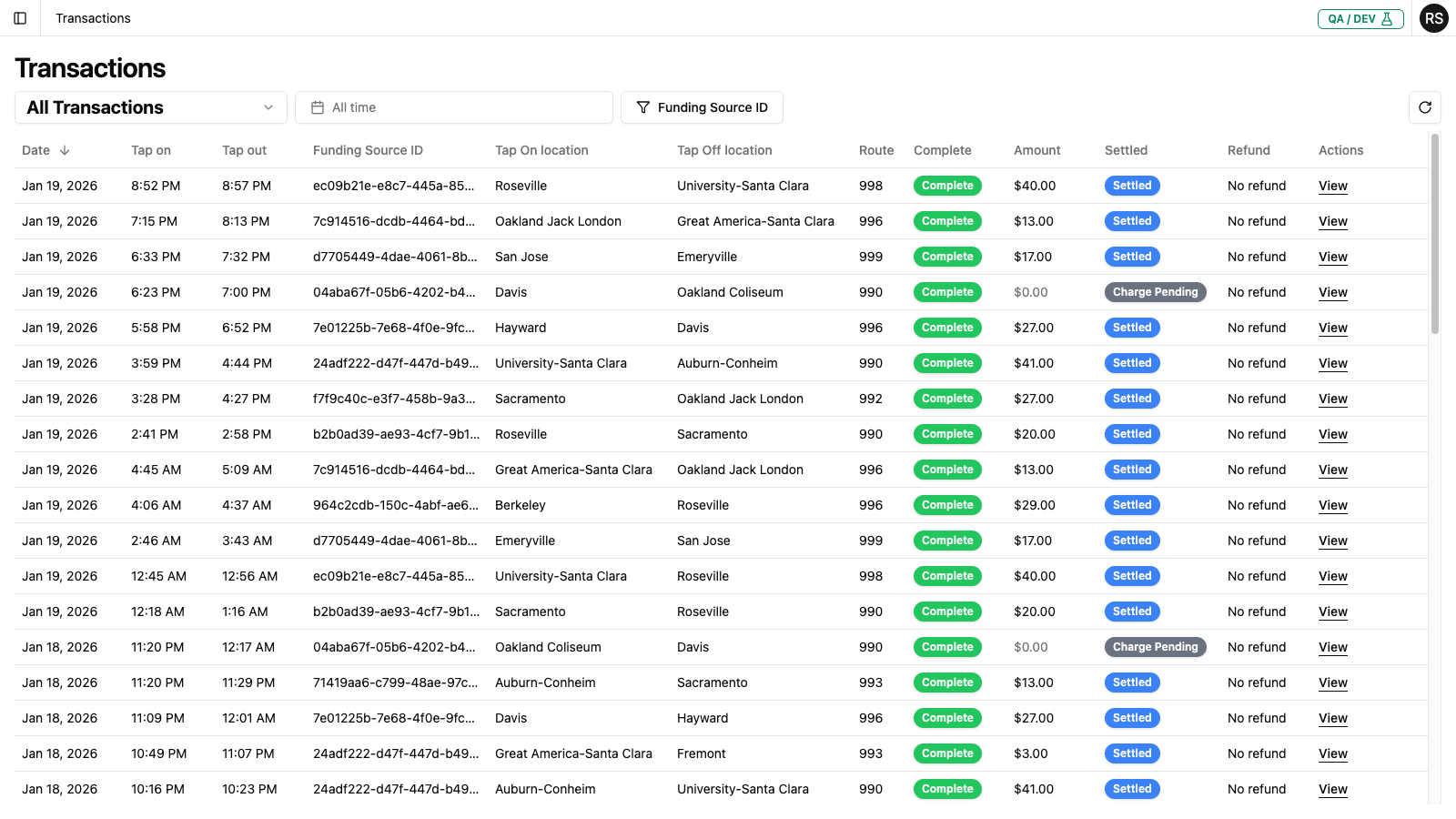
The Transactions page allows you to view, filter, and analyze all transit transactions in the system.
Accessing Transactions
Click Transactions in the left navigation menu to open the Transactions page.
Page Layout
Filters
At the top of the page, you'll find two filter controls:
Transaction Type Filter
A dropdown menu that lets you filter transactions by completion status:
| Option | Description |
|---|---|
| All Transactions | Shows all transactions regardless of status |
| Incomplete Transactions | Shows only transactions missing a tap-off event |
| Complete Transactions | Shows only transactions with both tap-on and tap-off |
Date Range Filter
Click the date picker to select the time period for viewing transactions:
- All time (default) - shows the complete transaction history
- Last 7 days and other preset ranges
- Custom date ranges can be selected
Refresh Button
Click the refresh icon on the right side to reload the transaction data with the current filters.
Transaction Table
The main content area displays a table of transactions with the following columns:
| Column | Description |
|---|---|
| Date | The date of the transaction (click to sort) |
| Tap on | The time when the passenger tapped on to begin their journey |
| Tap out | The time when the passenger tapped off to end their journey (may be empty for incomplete transactions) |
| Funding Source ID | The unique identifier for the payment method used |
| Tap On location | The station or stop where the journey began |
| Tap Off location | The station or stop where the journey ended (may be empty for incomplete transactions) |
| Route | The transit route number |
| Complete | Status indicator showing if the transaction is complete |
| Amount | The fare amount charged for the journey |
| Settled | Payment settlement status |
| Refund | Shows "No refund" if no refund has been issued, or the refund amount (e.g., "$7.00") if a refund was processed |
| Actions | Contains the View link to open the Transaction Detail page |
Understanding Status Indicators
Complete Status
The Complete column shows one of two statuses:
- Complete (green badge) - The transaction has both tap-on and tap-off events recorded
- Incomplete (orange badge) - The transaction is missing a tap-off event
Settlement Status
The Settled column shows the payment processing status:
- Settled (blue badge) - The payment has been fully processed and settled
- Charge Pending (gray badge) - The payment is still being processed
See Transaction Statuses for more details.
Working with Transactions
Sorting Transactions
Click on the Date column header to sort transactions:
- Click once for descending order (newest first)
- Click again for ascending order (oldest first)
Filtering by Completion Status
To find transactions that may need attention:
- Click the transaction type dropdown
- Select Incomplete Transactions
- Review the list of transactions missing tap-off events
These incomplete transactions may represent:
- Passengers who forgot to tap off
- System errors
- Potential overcharges requiring refunds
Filtering by Date Range
To view transactions for a specific period:
- Click the date range picker
- Select the desired time period
- The table will update to show only transactions within that range
Common Tasks
Finding Overcharges
Incomplete transactions often result in maximum fare charges. To identify potential overcharges:
- Filter by Incomplete Transactions
- Review transactions with high amounts
- Check if the tap-on location suggests a shorter expected journey
Viewing Transaction Details
To see full details about a transaction:
- Scroll right in the table to find the Actions column
- Click View next to the transaction
- The Transaction Detail page shows:
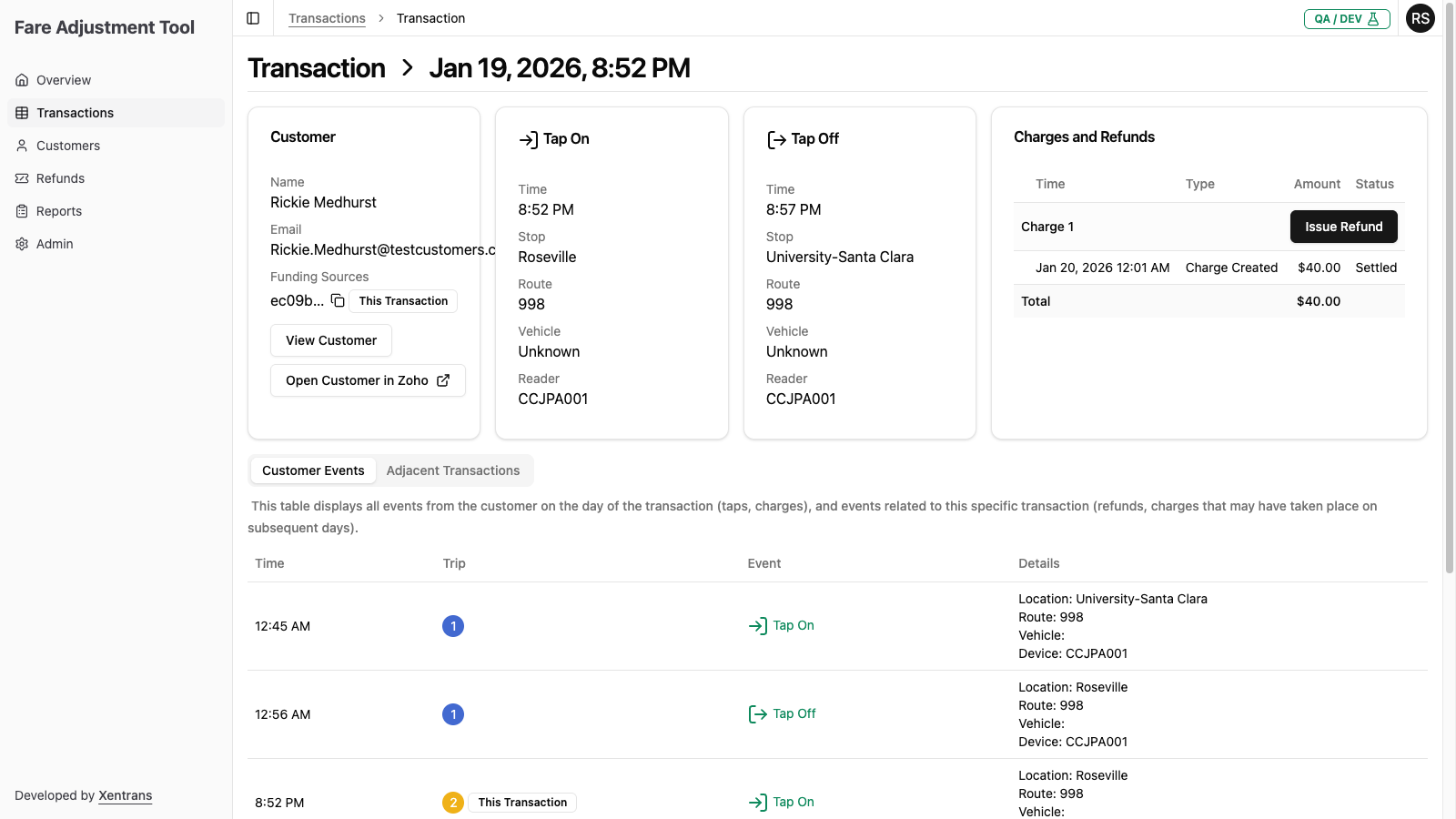
- Customer information - Name, email, and funding source ID. If a customer is linked, you can click to view their full profile. If no customer is linked, the transaction is from an unregistered user.
- Tap on/off details - Time, location, route, vehicle, and reader for each tap event
- Charges and refunds - Payment amounts with settlement status and any refunds issued
Customer Events Tab
A timeline showing all events from the customer on the day of the transaction, plus related events (like refunds) that may have occurred on subsequent days. This helps you understand the full context of the journey.
Adjacent Transactions Tab
Shows other transactions from the same customer around the same time period. This is helpful for understanding the customer's travel pattern and verifying refund requests.
Issuing a Refund
To issue a refund for a transaction:
- Click View on the transaction
- On the Transaction Detail page, click Issue Refund in the Charges and Refunds card
- Complete the refund form and confirm
For detailed instructions, see Issuing Refunds.
Investigating a Specific Transaction
When investigating a transaction, the Transaction Detail page provides most of the context you need:
- Click View on the transaction to open the Transaction Detail page
- Review the Customer Events tab to see all activity from that day
- Check the Adjacent Transactions tab for nearby trips that may be relevant
If a customer is linked to the transaction, click the View Customer button to see their full profile and complete transaction history.
If no customer is linked, the transaction is from an unregistered user whose payment method is not associated with a customer record in the system.
Next Steps
- Issue a refund for a transaction
- Look up customers to view their complete transaction history
- View refund history to track processed refunds
- Learn about Transaction Statuses